Veo 3.1 AI Video Generator
Directed AI video creation with Veo 3.1 across prompt, image, frames, and multi-reference workflows.
Your video will appear here
Ready when you are—add a descriptive prompt to begin.
You can review your finished videos anytime on My Videos.
Experience Veo 3.1 AI Video Generation on Genverse AI
Veo 3.1 is designed for stronger prompt adherence, cleaner motion, and practical controls for teams that need more than prompt-only generation. On Genverse AI, Veo 3.1 becomes one focused workspace for text-to-video, image-to-video, frames-to-video, and reference-guided video creation.
You can start from text, animate a still, anchor a shot with start and end frames, or guide results with multiple reference images. Fast and Quality modes help you choose between quicker iteration and a more polished final pass without leaving the Veo 3.1 workflow.
What Is Veo 3.1 in Genverse AI?
Veo 3.1 is an advanced AI video generation model developed by Google. It creates high-quality videos from text, images, or reference frames, with support for start/end frame control, multi-image guidance, and more consistent motion—making it ideal for storytelling, ads, and creative production.
On Genverse AI, Veo 3.1 is organized as one model page rather than four disconnected tools. That means you can stay inside the same Veo context while switching between text, image, start-and-end-frame, and reference-led generation modes depending on how much guidance a specific shot needs.
Key Capabilities of Veo 3.1 on Genverse AI
Four practical strengths make Veo 3.1 useful when speed and structure both matter.
Fast and Quality Generation Paths
Veo 3.1 supports different generation intents, and Genverse AI reflects that with Fast and Quality modes. Fast is useful for testing scene logic and motion choices, while Quality is better when the output needs a cleaner final pass.
Start and End Frame Direction
Veo 3.1 is especially strong when a shot needs a defined beginning and a defined destination. The frames-to-video workflow helps you lock the opening and closing image so the generated motion has a clearer narrative path.
Reference-Led Image Guidance
The model page supports reference-driven creation so you can move beyond a single visual anchor. Multiple image references help tighten identity, scene cues, and styling when prompt-only control is not enough.
Prompt-Led or Asset-Led Creation
Some shots should begin from text, others from a still frame, and others from more structured visual guidance. Veo 3.1 works best when you can choose the right starting point instead of forcing every idea into one workflow.
Why Veo 3.1 Feels Different in Daily Creation
The value of Veo 3.1 is not only quality. It is the way its controls help teams move from open ideation into more directed video work.
Better for Structured Scene Building
When an idea already has a clear opening frame, ending frame, or reference look, Veo 3.1 gives you more ways to preserve that structure than a simple prompt-only workflow.
A Smoother Bridge from Draft to Final
Fast mode makes early exploration easier, while Quality mode helps you stay in the same model when the stronger version is ready. That creates a cleaner ladder from testing to presentation.
Useful for Reference-Heavy Work
Start and end frame control plus multiple references maps well to creators who care about scene stability, visual continuity, and stronger control over what the clip should become.
Designed for Real Production Decisions
Instead of relying on one vague prompt, Veo 3.1 is most useful when you need to decide how much control the current shot deserves and then choose the right workflow depth to match it.
One Model Context Across Multiple Inputs
On Genverse AI, Veo 3.1 can stay selected while you switch among text, image, frame, and reference workflows. That reduces context switching and keeps the comparison process more consistent.
A Stronger Fit for Shot Planning
Because you can anchor key moments and refine them with references, Veo 3.1 is especially practical for product scenes, character moments, concept shots, and storyboard-style exploration.
How to Use Veo 3.1 on Genverse AI
A four-step flow helps Veo 3.1 stay simple even when you need more directed control.
Choose the Veo 3.1 Workflow That Matches the Shot
Start with text-to-video when the idea is still open, image-to-video when one still should drive the clip, frames-to-video when the beginning and end both matter, or reference-to-video when identity and style need more control.
Add Prompt, Image, or Reference Direction
Describe the subject, motion, scene energy, and camera intent clearly. Then add only the image or reference inputs that genuinely improve the shot instead of over-constraining every run.
Choose Fast or Quality Based on the Current Goal
Use Fast mode for quicker iteration when you are comparing ideas. Switch to Quality when the direction is already working and you want a more polished pass from the same Veo 3.1 page.
Generate, Compare, and Keep the Strongest Version
Run more than one version when needed, compare motion, framing, and clarity, then keep the Veo 3.1 output that best matches the shot brief. This compare-and-refine loop is where the model becomes most useful.
Choose the workflow that matches the shot you want to direct.
Add prompt, image, frame, or reference guidance to anchor the result.
Pick the generation path that best fits the current pass.
Generate, compare, and keep the Veo 3.1 output that feels strongest.
What You Can Create with Veo 3.1
Veo 3.1 is especially useful when the scene needs more control than a loose prompt can provide.
Product and Brand Demonstrations
Use Veo 3.1 when the camera path, hero frame, or final reveal matters. Frame-aware and reference-led generation make it easier to keep a commercial shot closer to the intended structure.
Storyboard and Shot Development
When teams want to test how a scene moves from one key image to another, Veo 3.1 is practical for quick shot planning and previsualization.
Character and Identity-Led Concepts
Reference-guided workflows help when the clip should stay closer to a known face, costume, environment, or mood board rather than drifting into a new visual interpretation.
Versioned Creative Exploration
Fast and Quality modes make Veo 3.1 useful for comparing multiple passes of the same concept, especially when teams want a quicker draft path before choosing a more polished output.
Why Use Veo 3.1 on Genverse AI?
Genverse AI turns Veo 3.1 into a cleaner product workflow instead of a collection of disconnected model claims.
One Clean Veo 3.1 Workspace
You can move between prompt, image, frame, and reference workflows from one Veo 3.1 page. That keeps the model context stable while the amount of guidance changes.
Mode Switching Without Losing Context
Instead of leaving the model page to try a different route, you can keep Veo 3.1 selected and switch the workflow only when the shot calls for more or less structure.
Practical Controls Over Abstract Hype
The Veo 3.1 page stays grounded in real creator decisions such as generation path, image references, frame anchors, and credit-aware settings rather than generic model marketing alone.
A Better Home for Iterative Teams
For marketers, creators, and production teams, Veo 3.1 on Genverse AI is easier to repeat because the workflow, preview surface, and generation modes all stay in one place.
Frequently Asked Questions About Veo 3.1
What is Veo 3.1?
Veo 3.1 is an AI video model by Google that generates high-quality videos from text, images, and reference frames with strong control.
What makes Veo 3.1 useful beyond prompt-only generation?
The biggest difference is how well Veo 3.1 fits structured guidance. You can start from text, a still image, a defined opening and ending frame, or multiple reference images depending on how tightly the shot should be controlled.
When should I use Fast mode vs Quality mode?
Use Fast mode when you want quicker comparisons or earlier drafts. Use Quality mode when the direction is already working and the clip needs a more polished pass.
Does Veo 3.1 support start and end frame workflows?
Yes. On Genverse AI, Veo 3.1 supports a frames-to-video workflow that is especially helpful when the opening shot and final shot both need to stay anchored.
Can I guide Veo 3.1 with more than one reference image?
Yes. The Veo 3.1 reference workflow on Genverse AI supports multiple image references so you can tighten identity, look, and scene direction when one image is not enough.
What kinds of projects fit Veo 3.1 best?
Veo 3.1 is a strong fit for brand visuals, product clips, storyboard-style tests, shot planning, and other AI video work where structure and directed iteration matter more than open-ended randomness.
Explore More Genverse AI Video Tools
Use Veo 3.1 together with other Genverse AI workflows when a project needs a broader creation stack.
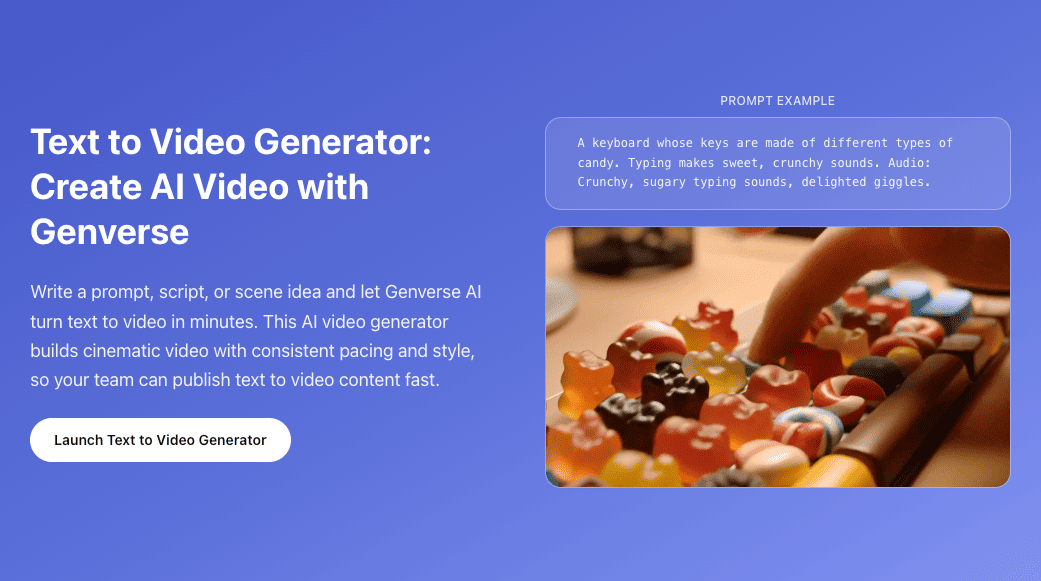
Text to Video
Start from prompt-only video generation when you want faster exploration.
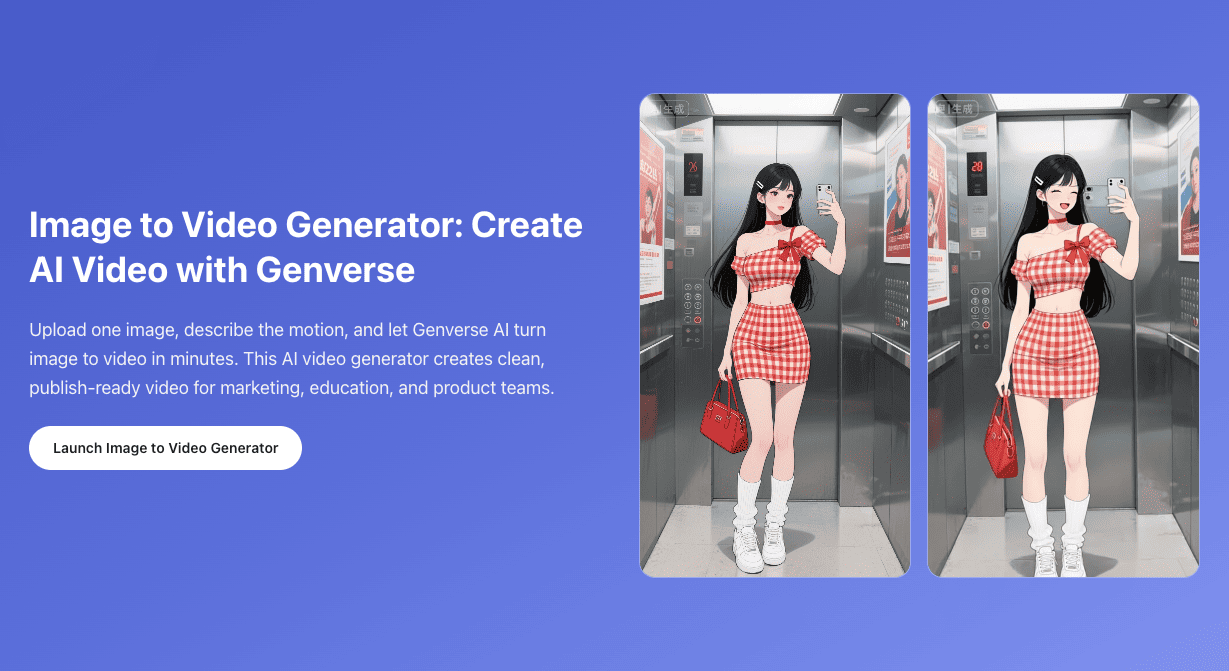
Image to Video
Animate a single still image when one strong opening frame is enough.
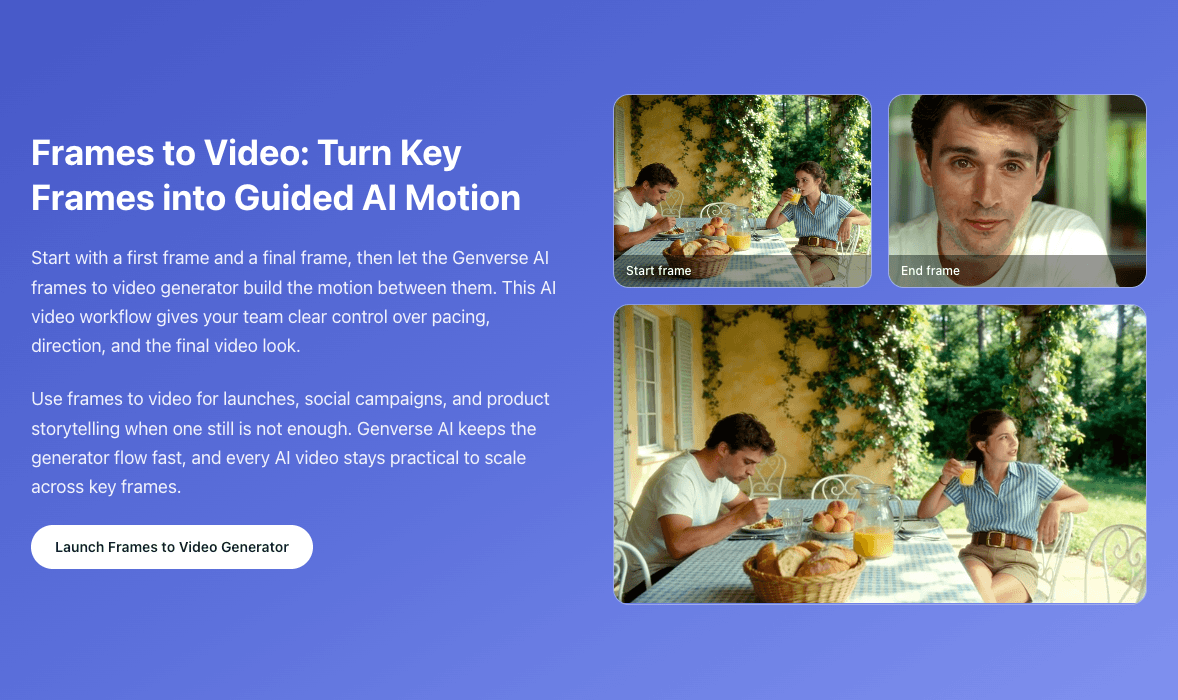
Frames to Video
Use explicit start and end frames when timing and transitions matter more.
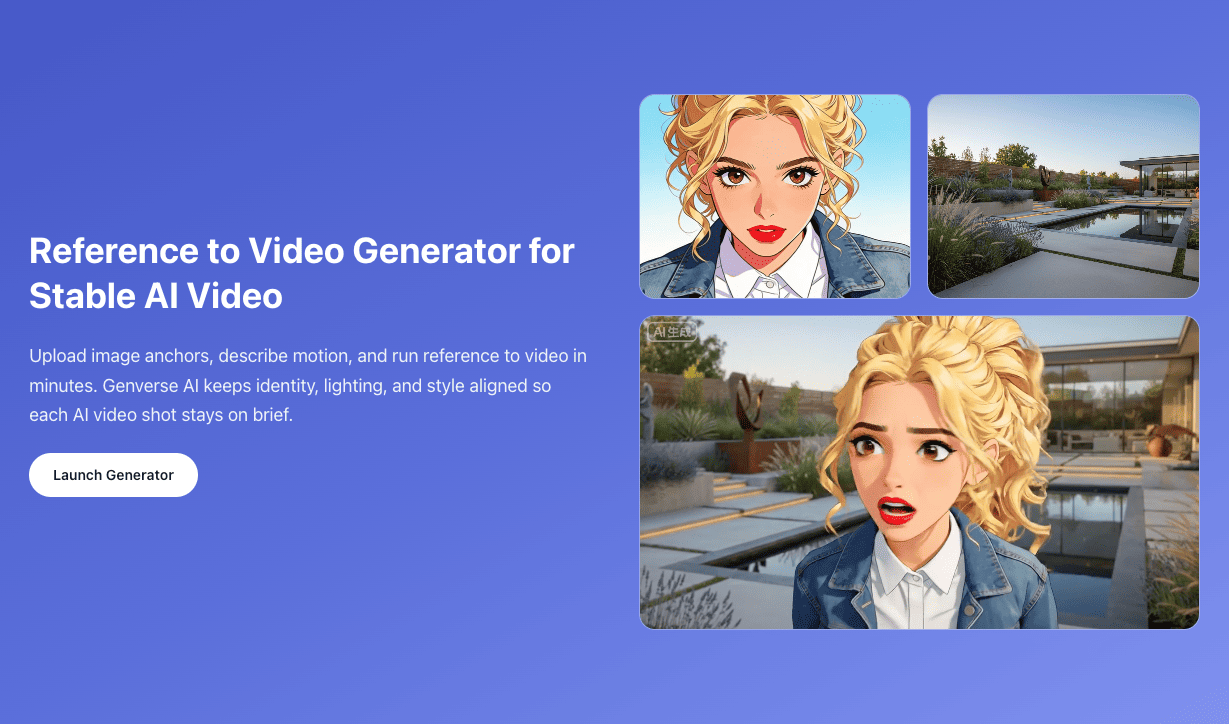
Reference to Video
Add visual anchors when identity, style, or scene cues should stay more controlled.